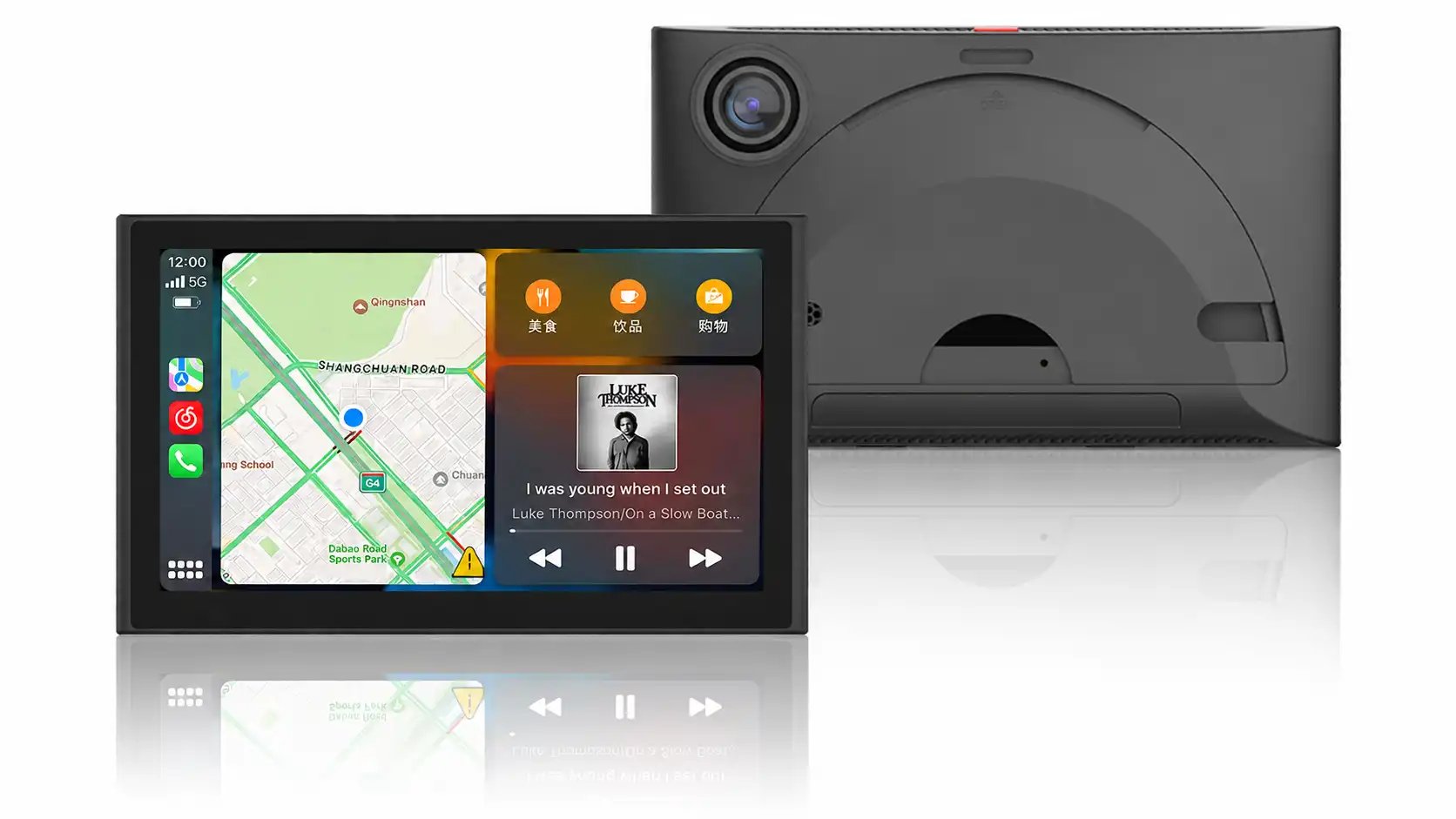
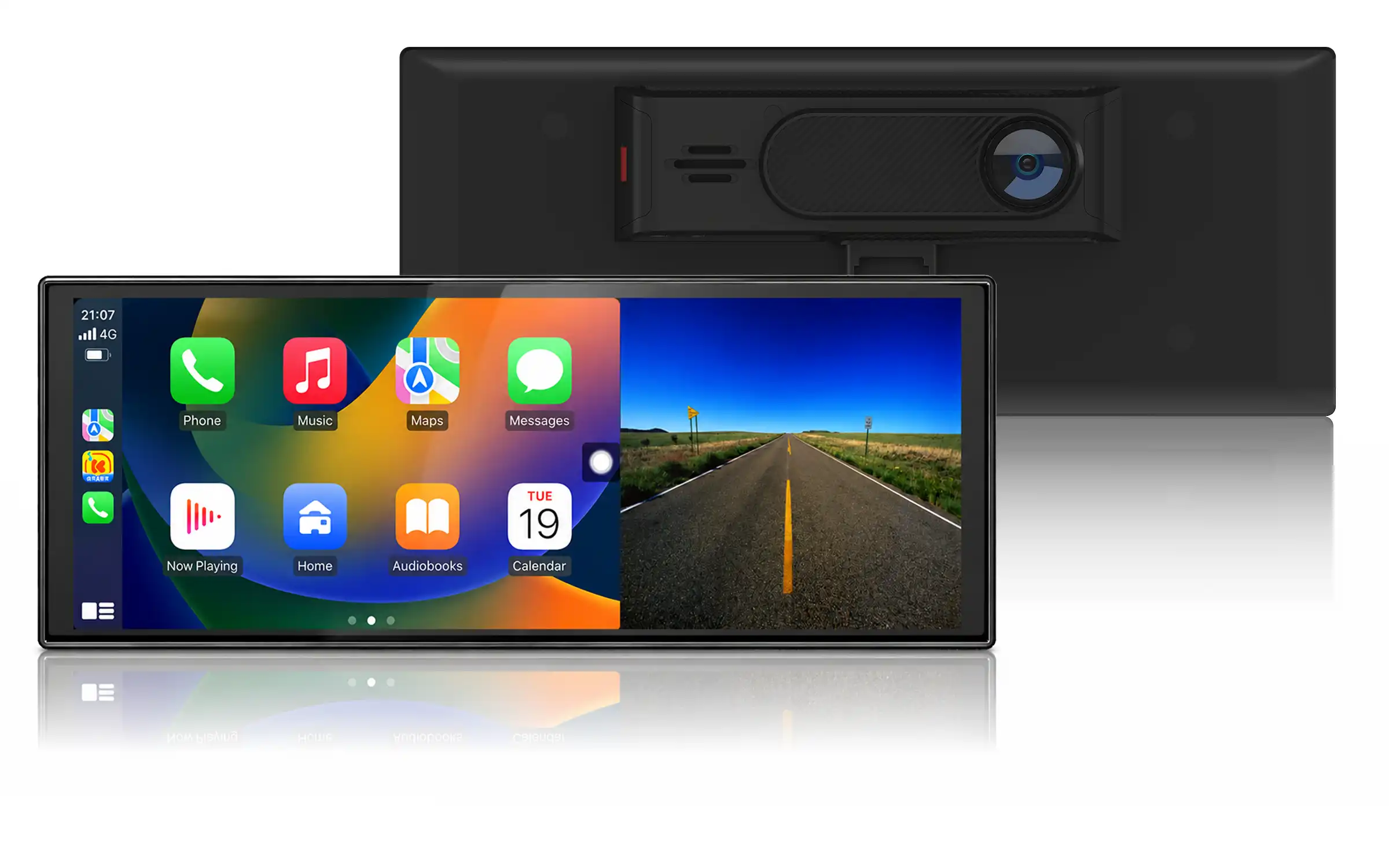
Make every drive simple & free
MCVISION CarPlay PND Smart Monitor

MCVISION CarPlay PND Smart Monitor

Every drive feels safer when you see every blind spot clearly.
Discover More

PRODUCT CATEGORIES

NEW ARRIVAL

803W

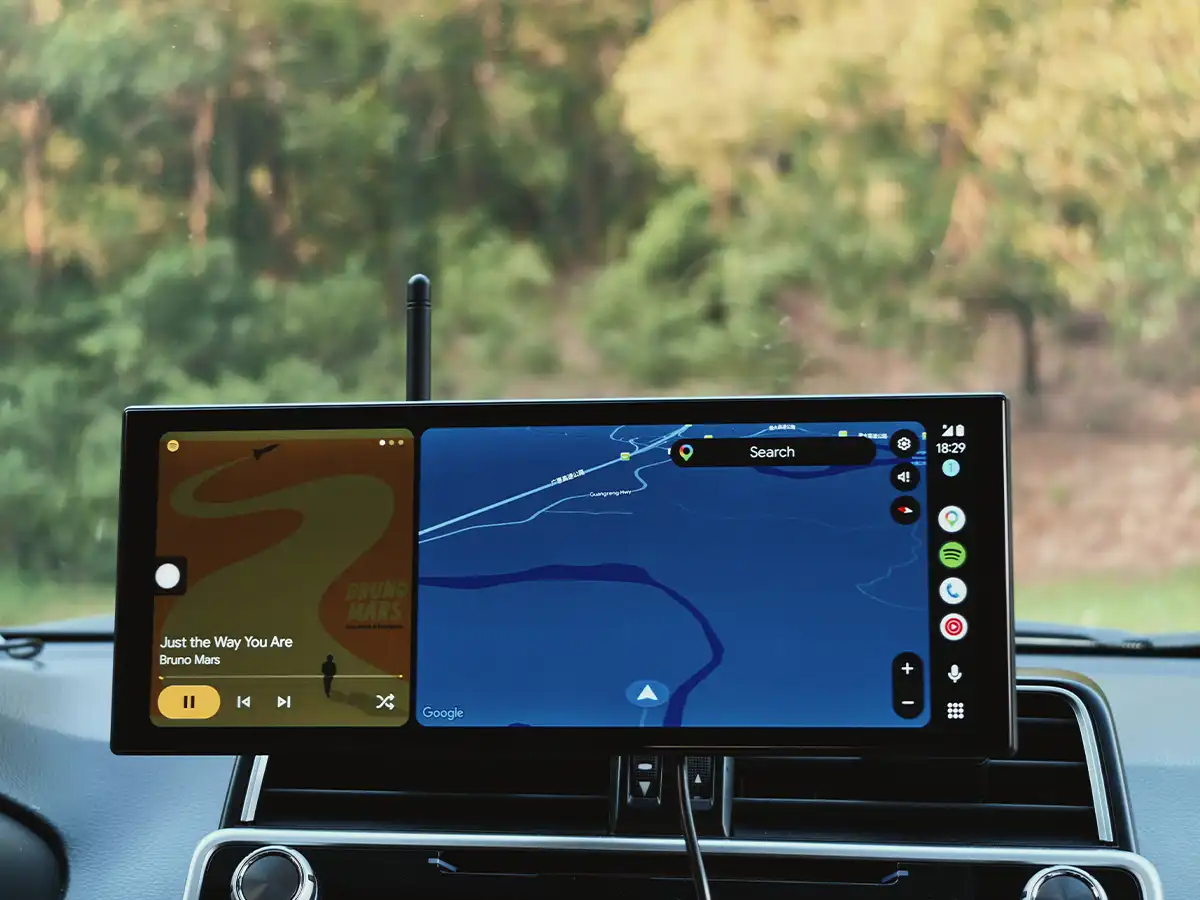
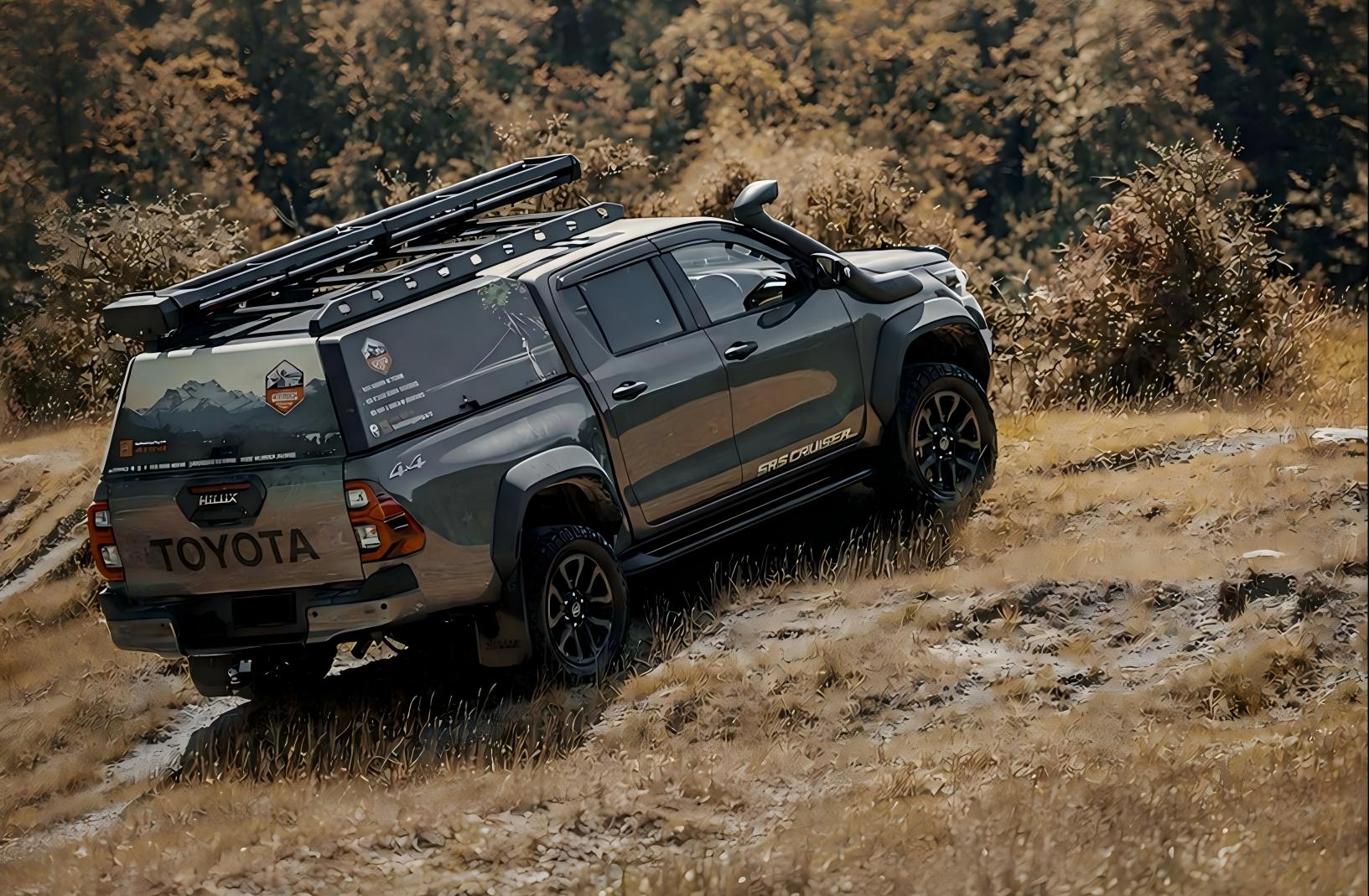
BUILT FOR ON AND OFF-ROAD ADVENTURE AHEAD

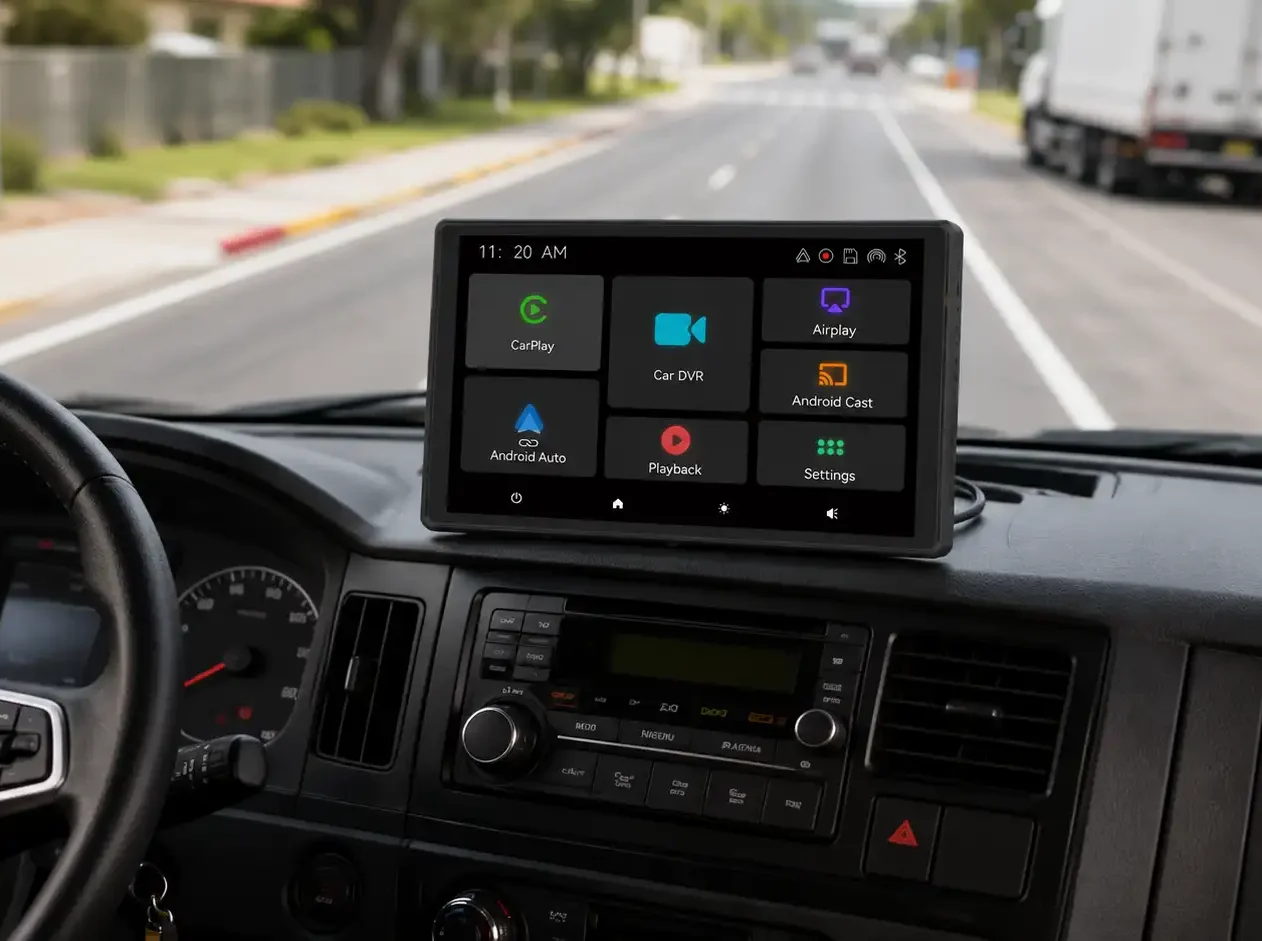
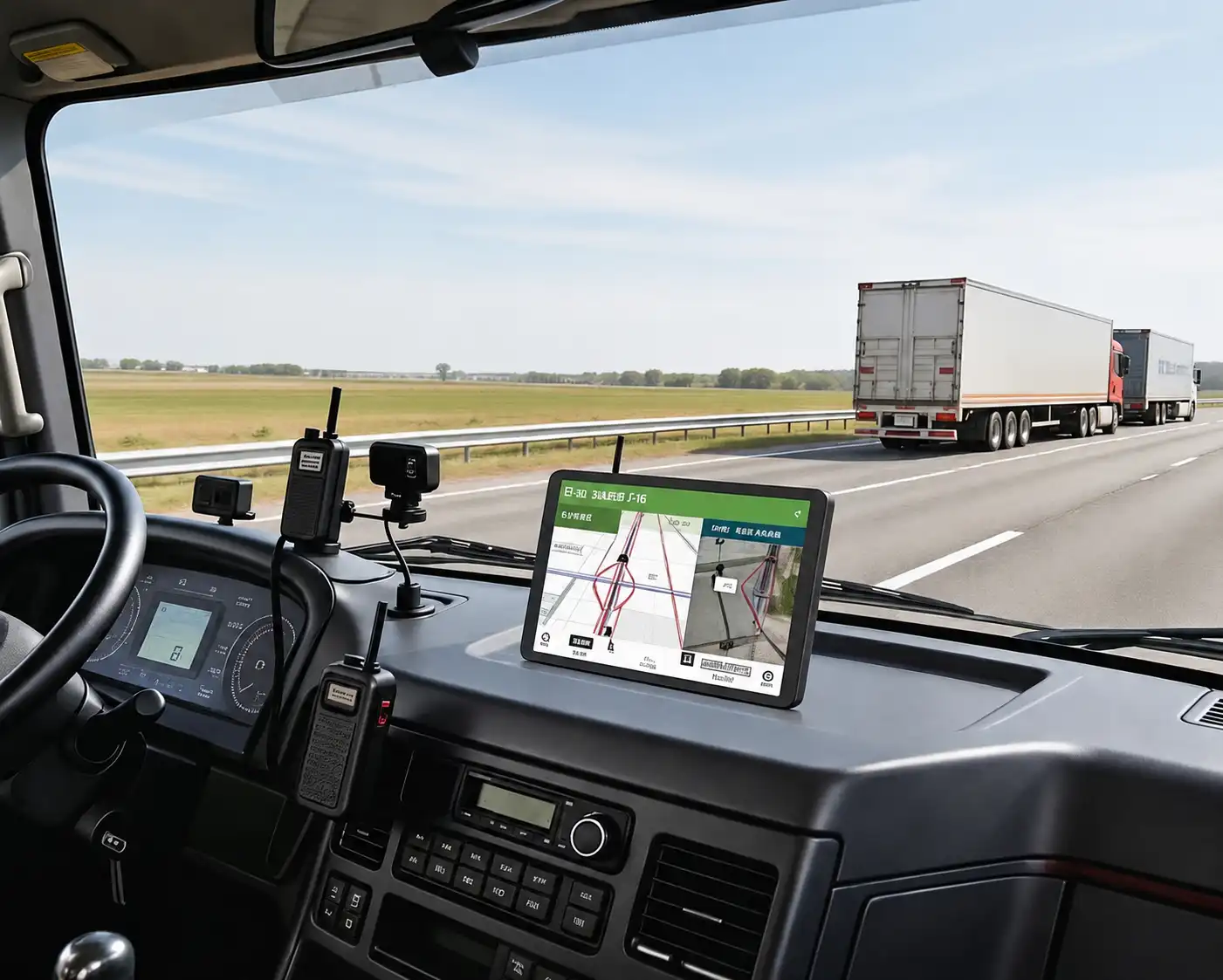
Perfect Navigation for Heavy-Duty
Trucks
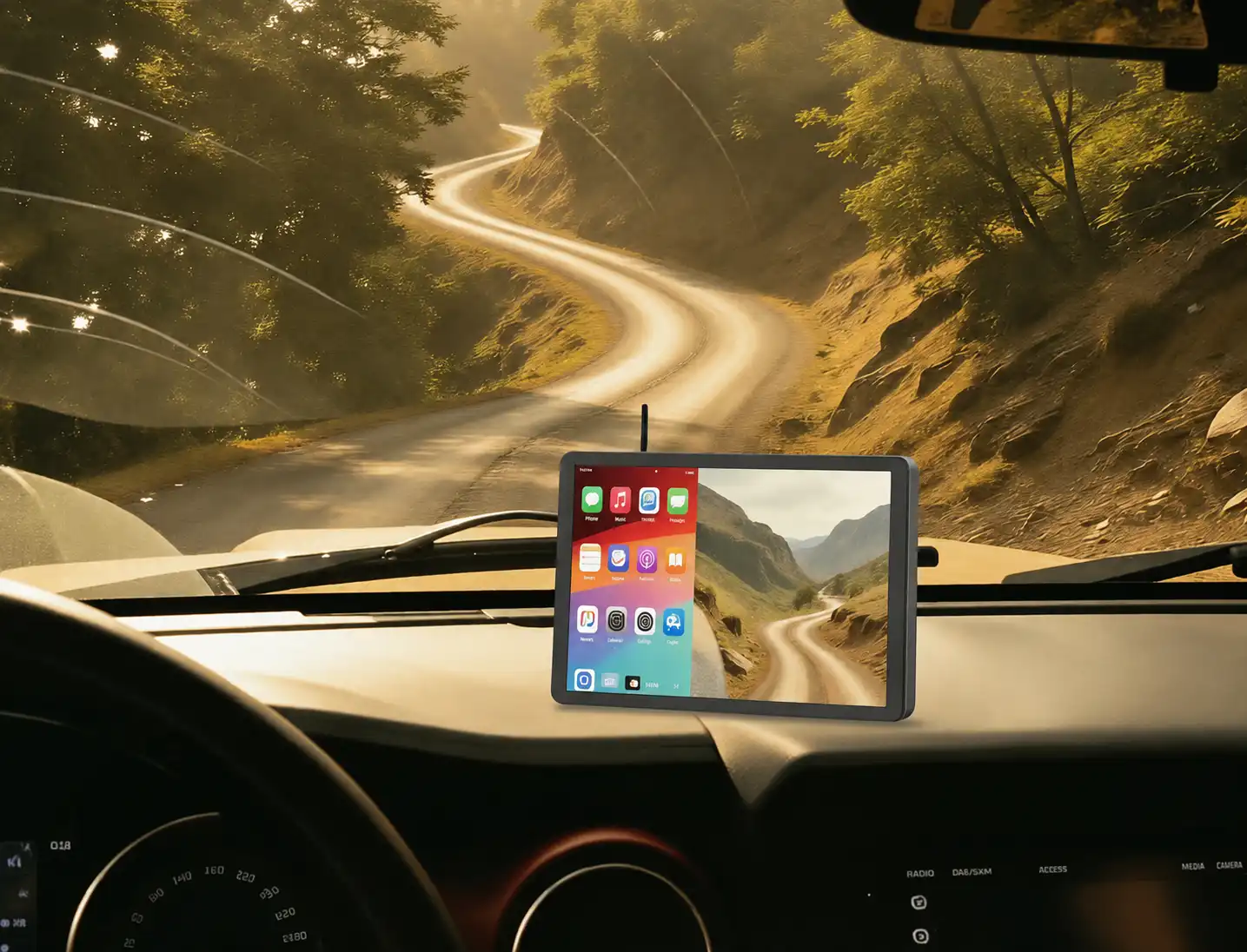
Smooth Driving Experience for Off-Road
Vehicles
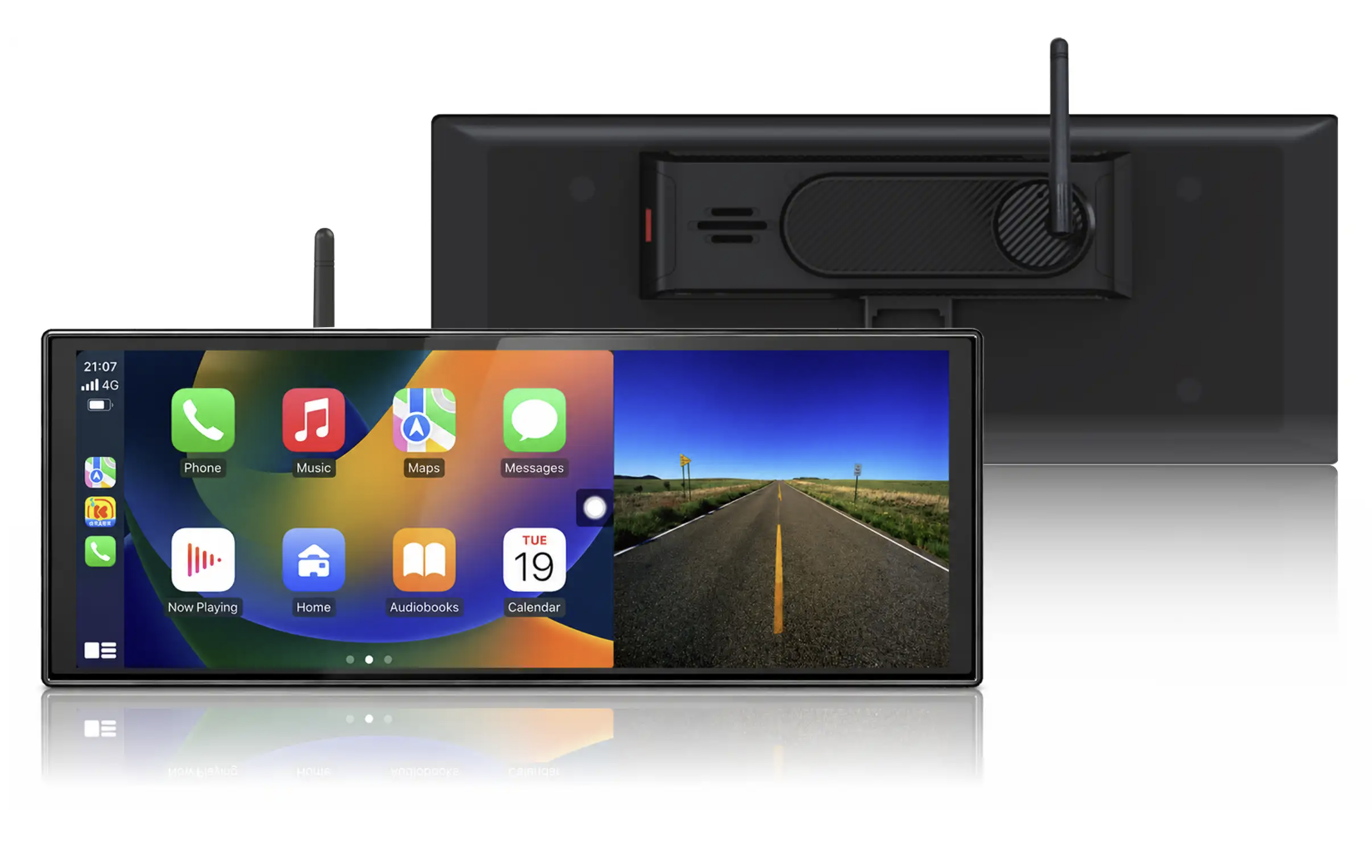
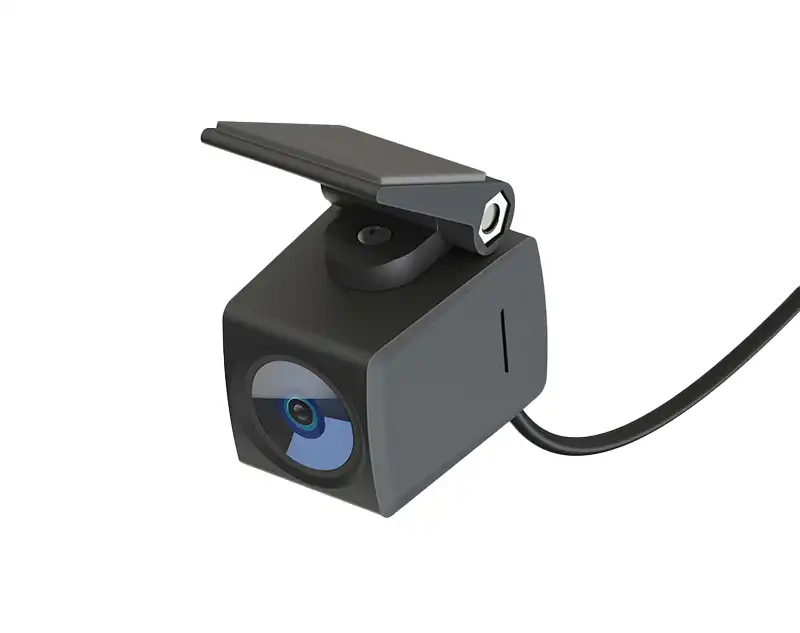
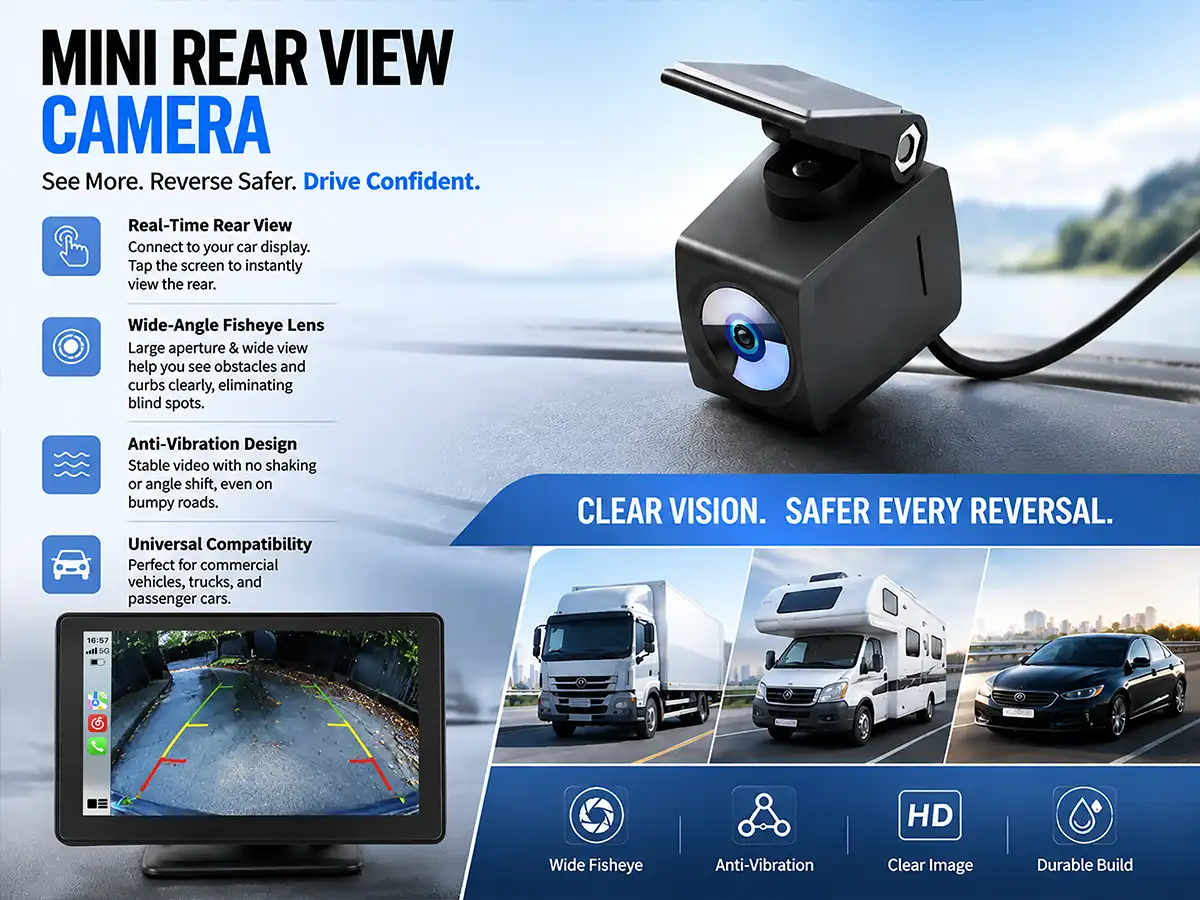
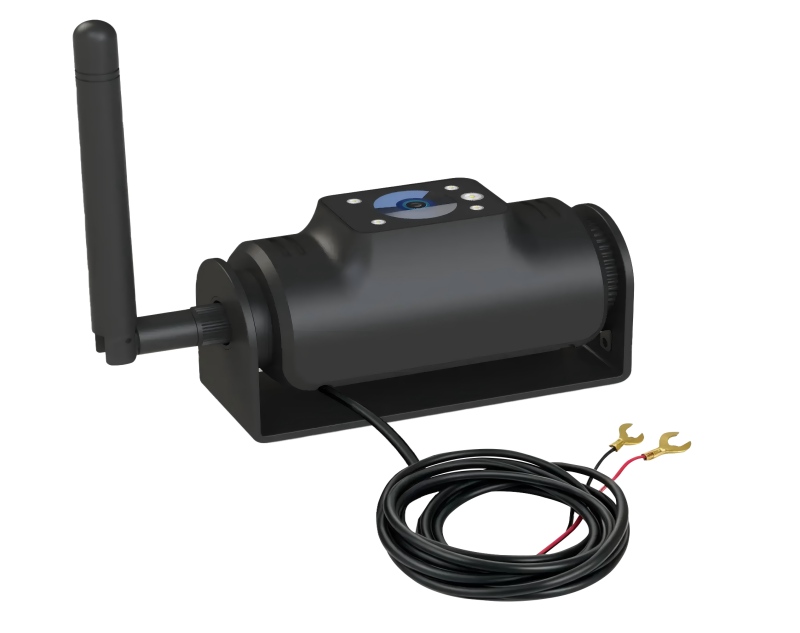
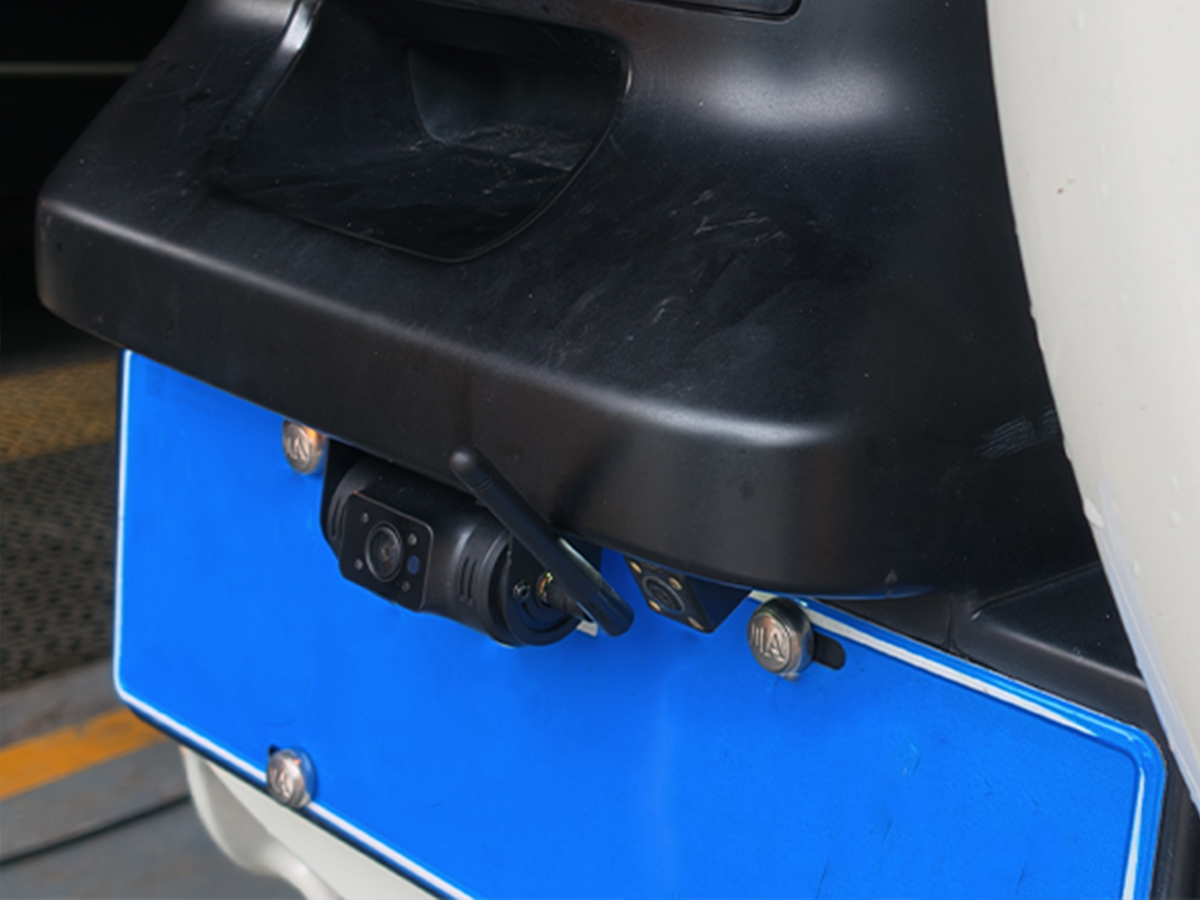
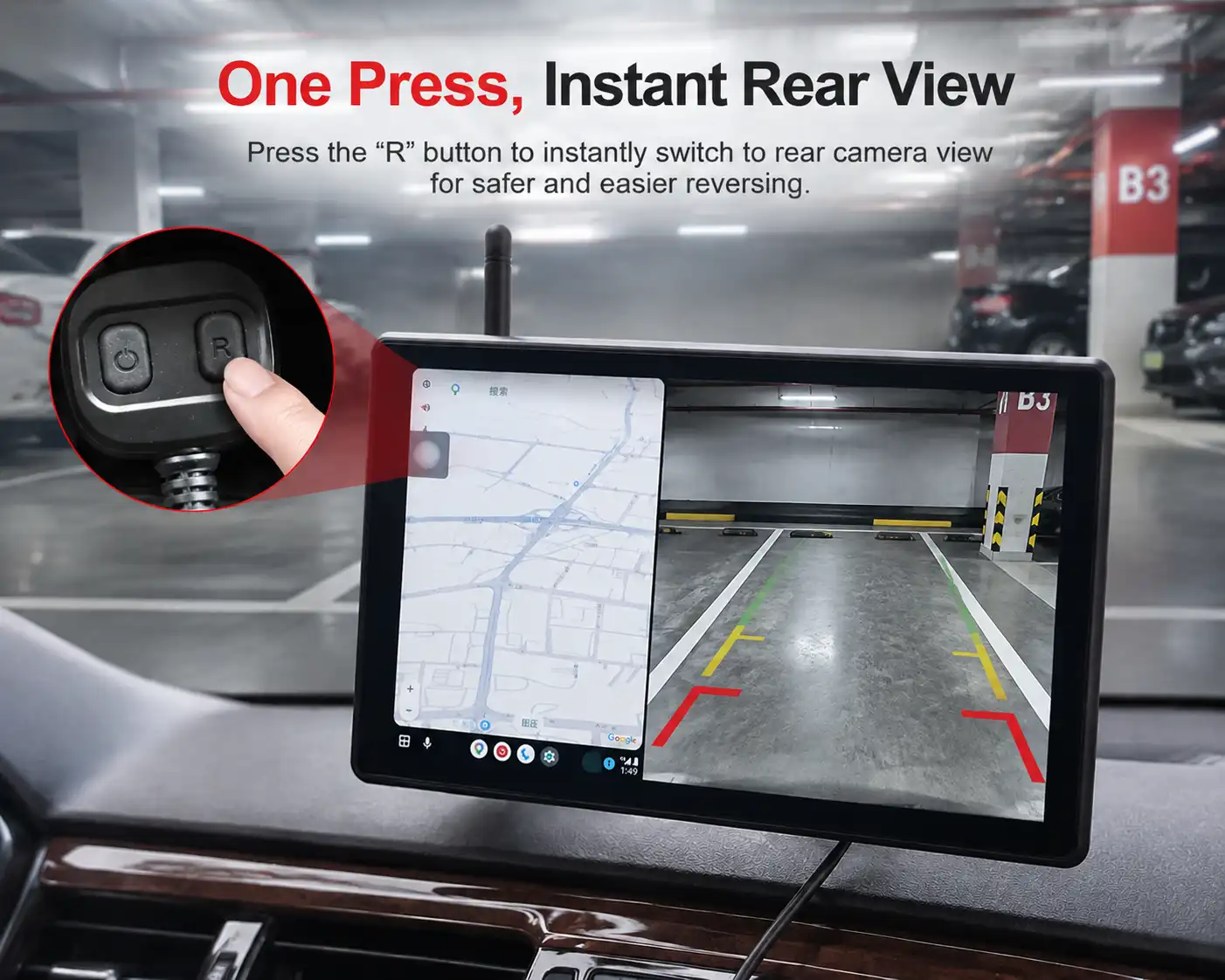
Real-Time Wireless Rear View Camera
Display
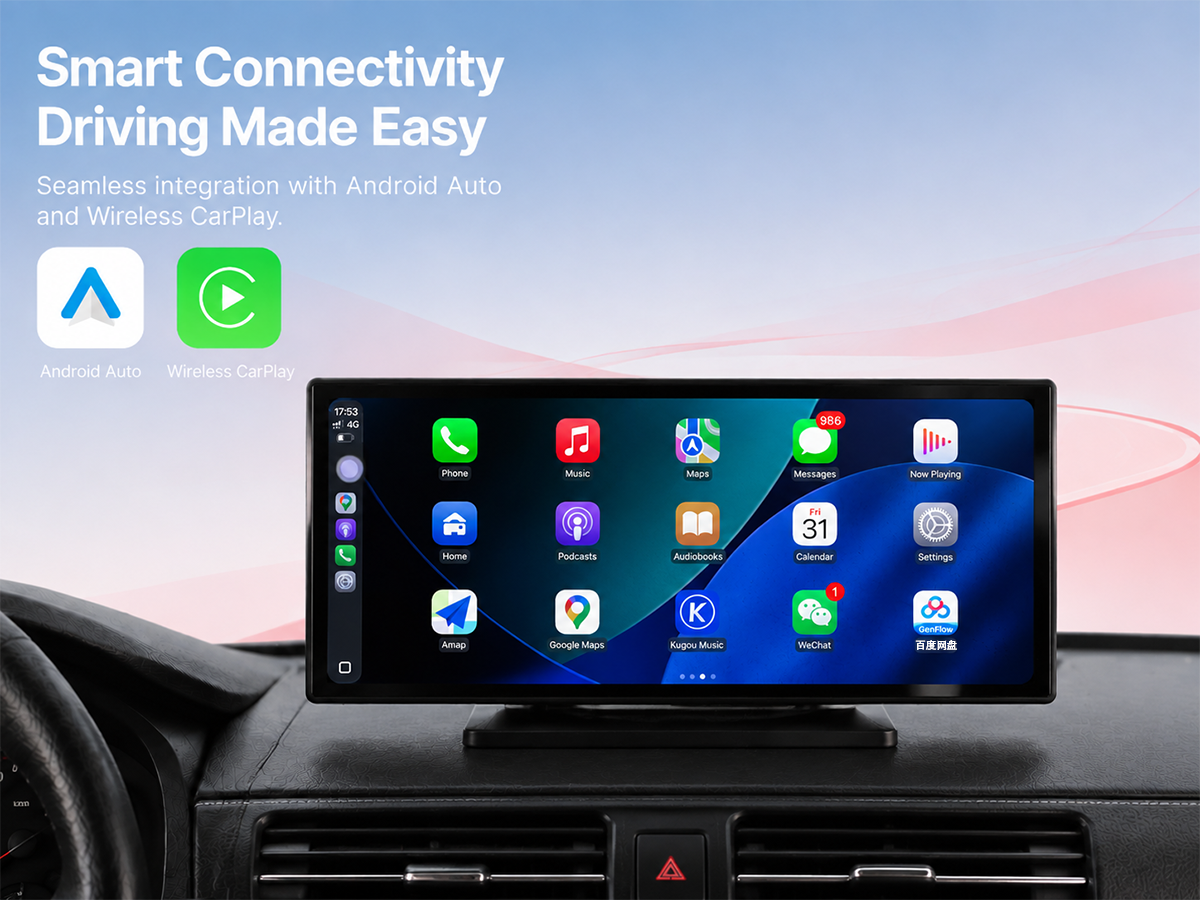
Clear HD Navigation with Wireless
CarPlay
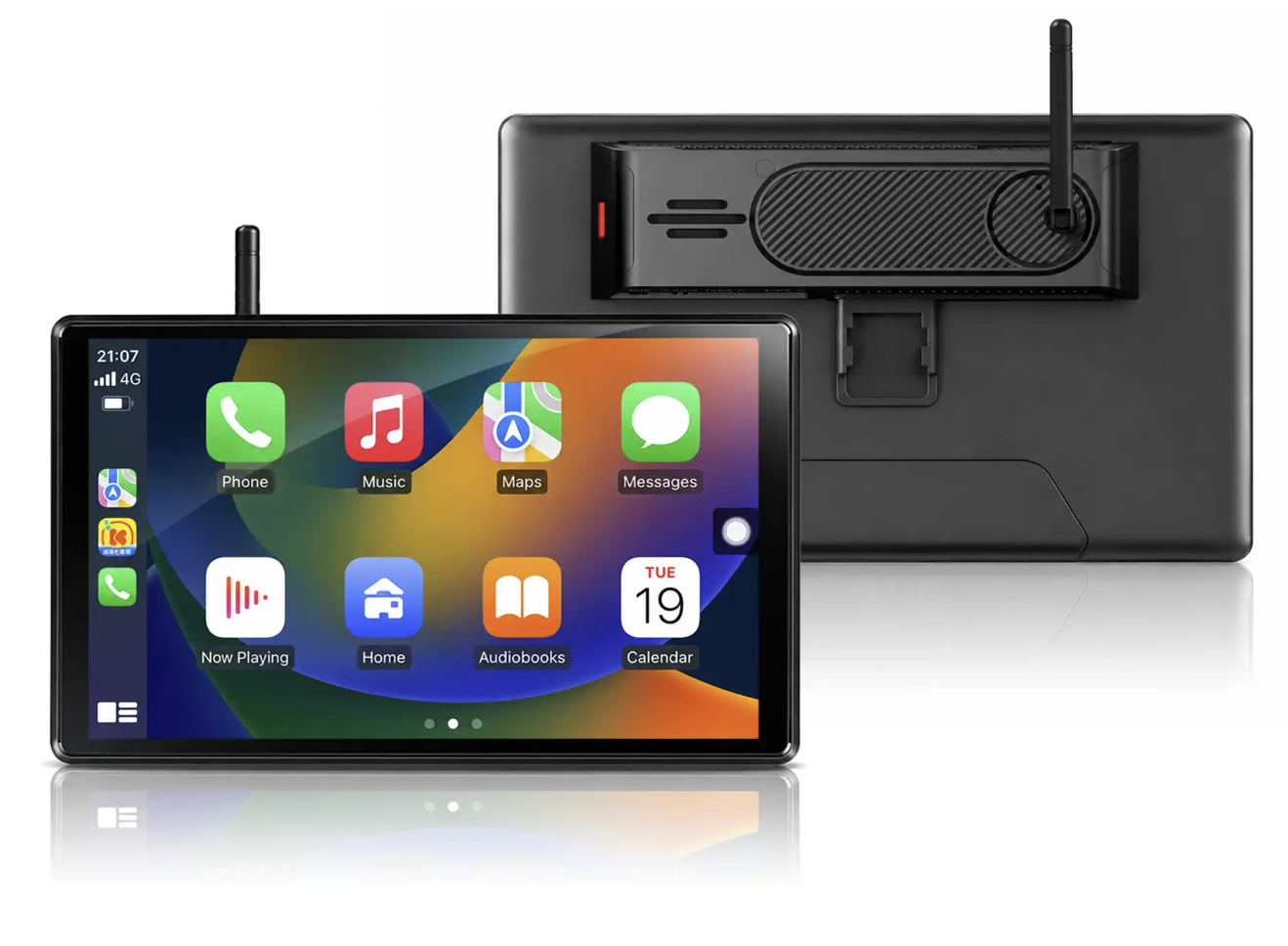
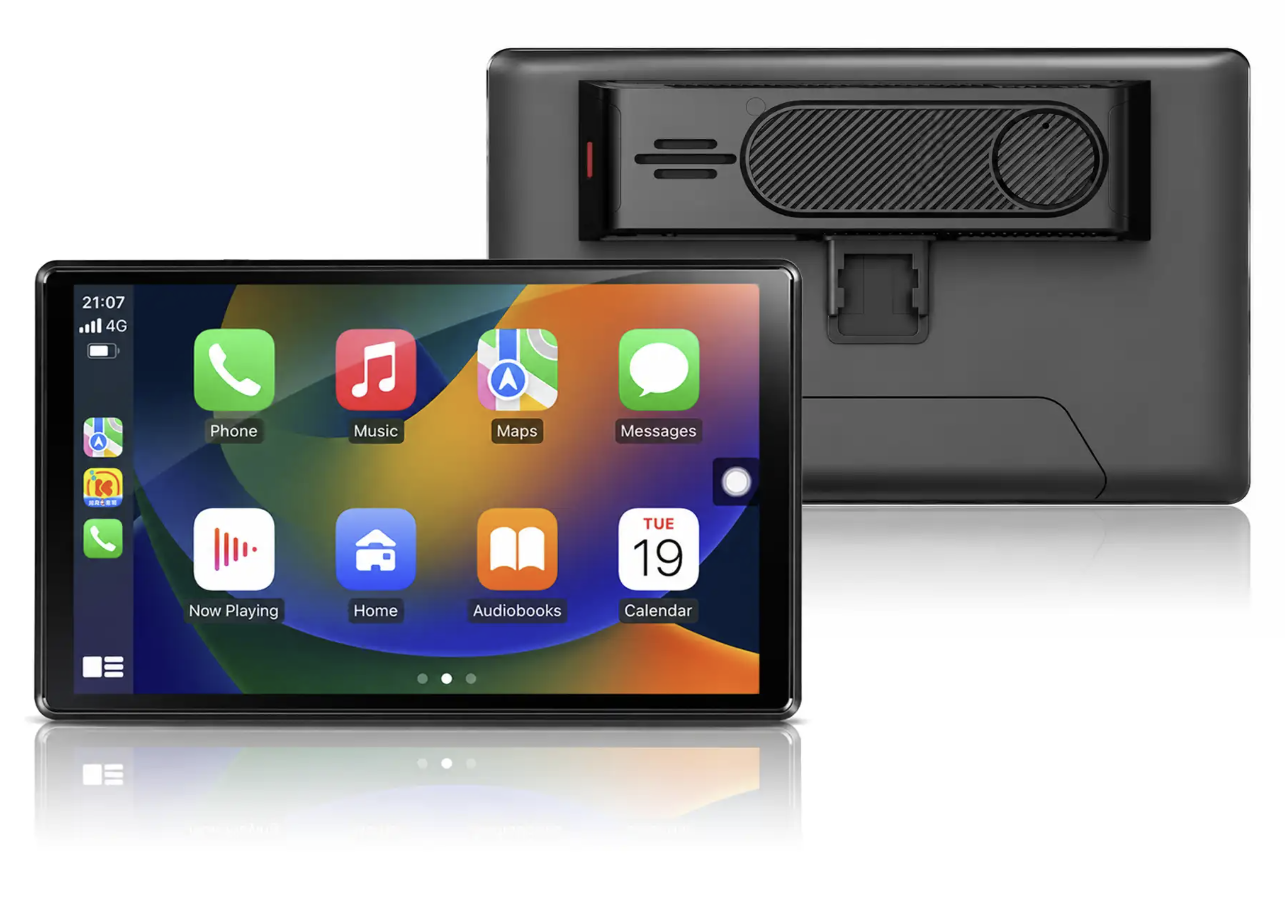
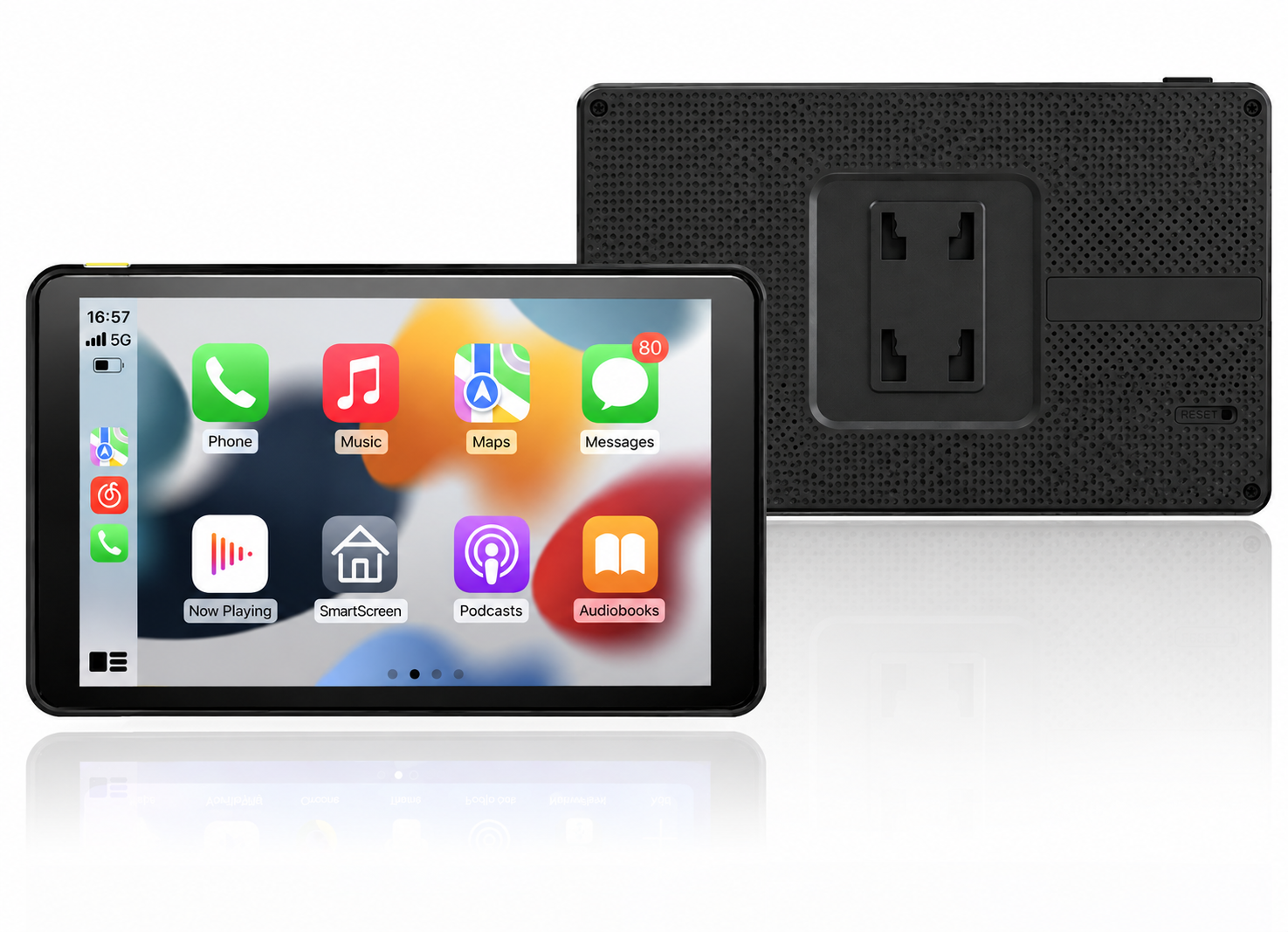
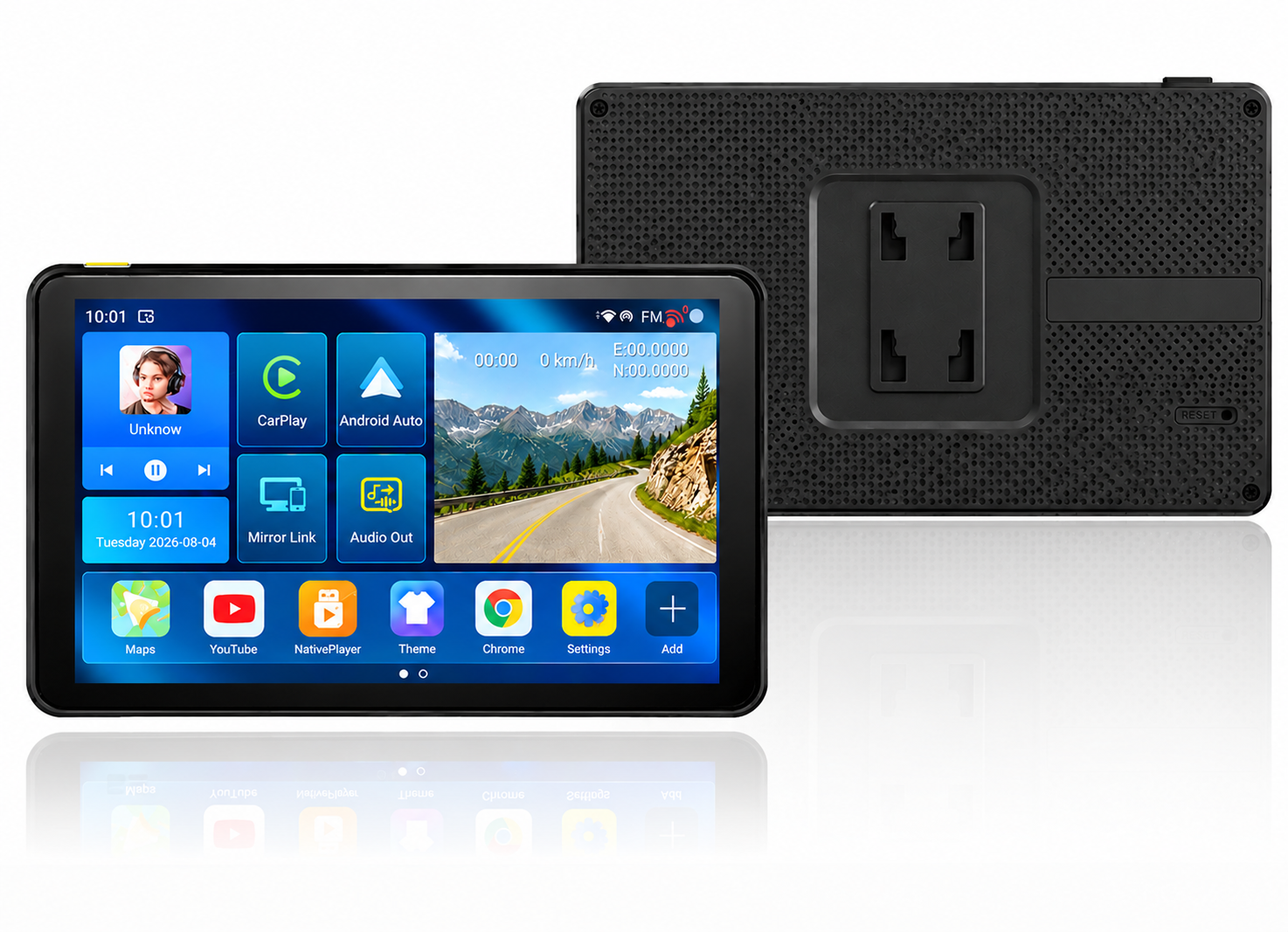
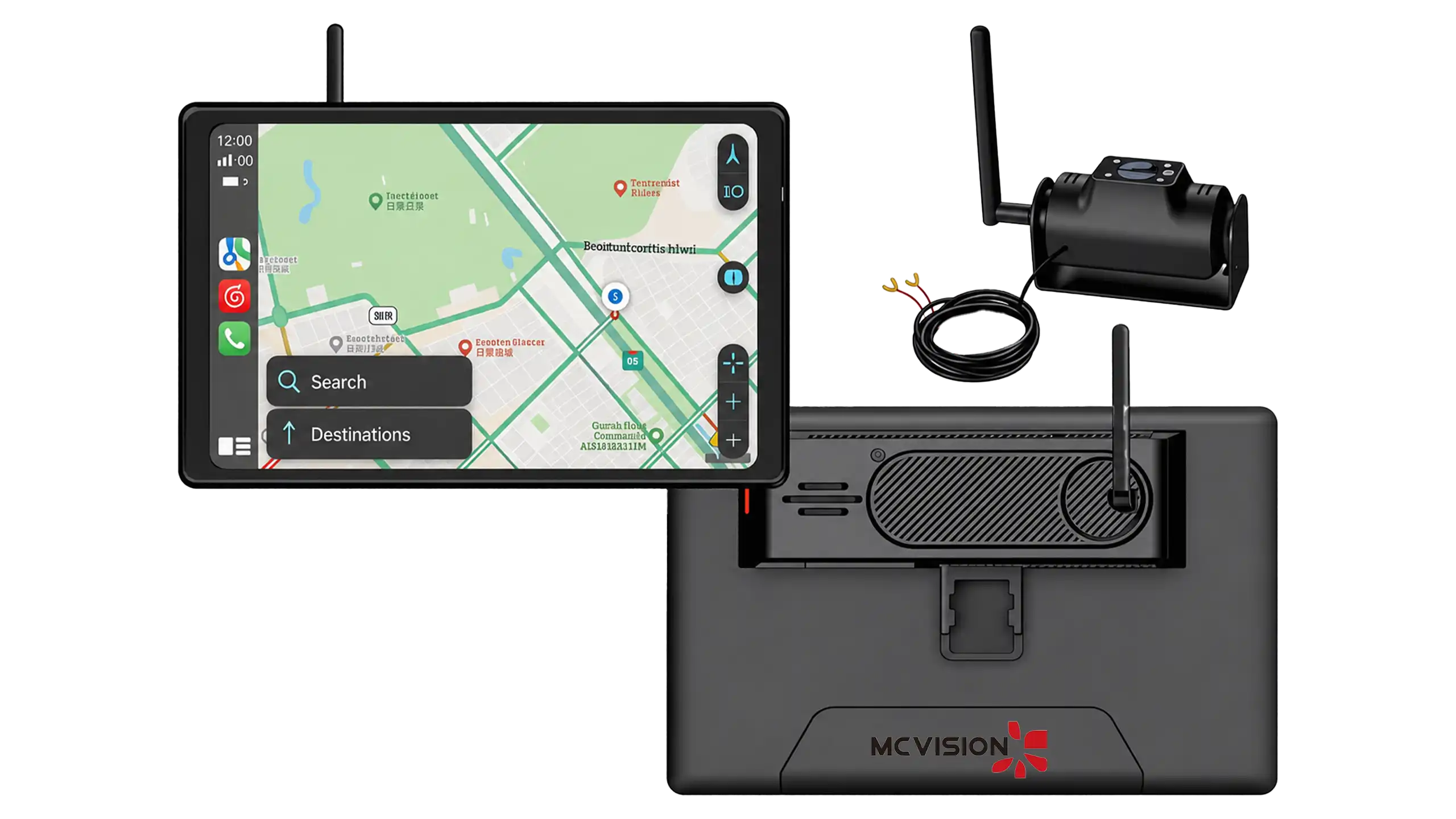
8.0" IPS screen 1280*800
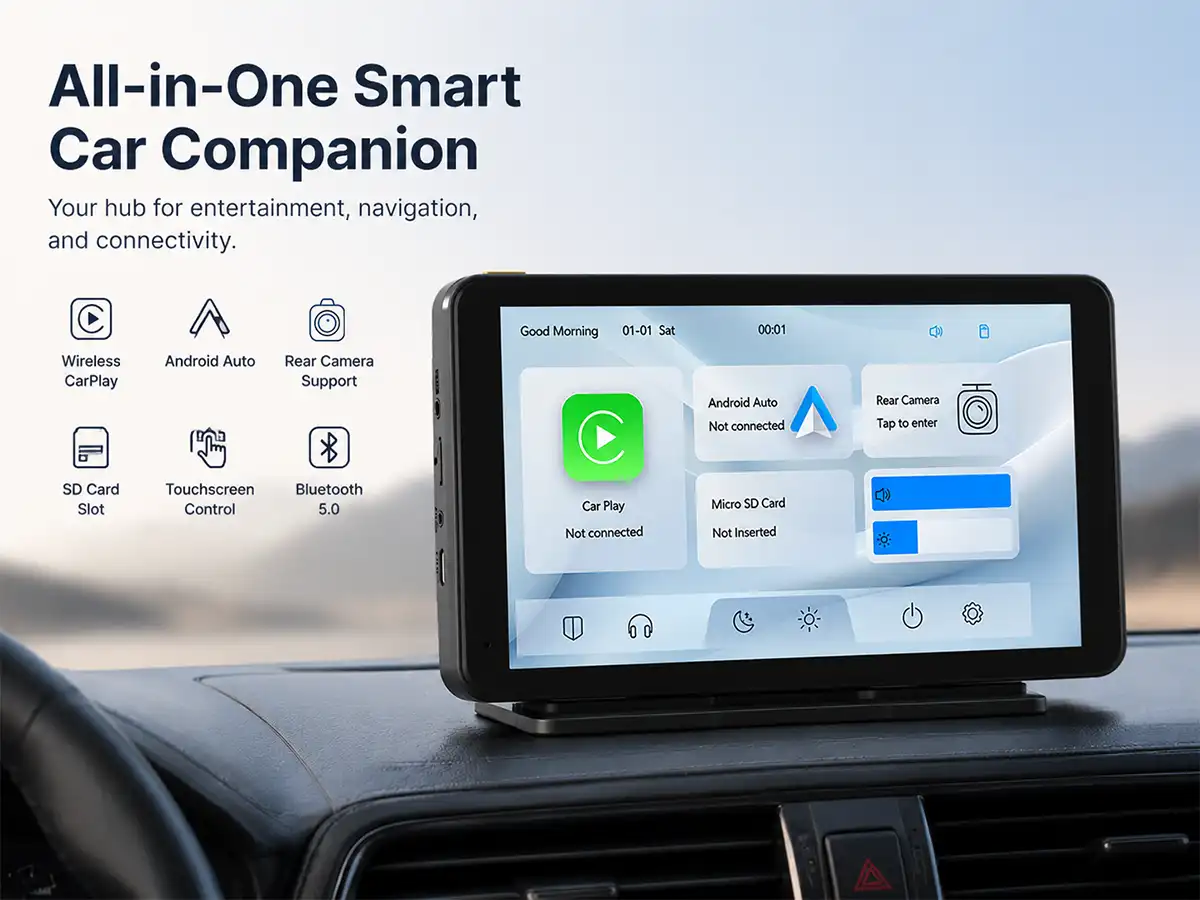
CarPlay
Android Auto
Bluetooth
WiFi
capacitive touch
Loop recording
Light Sensor
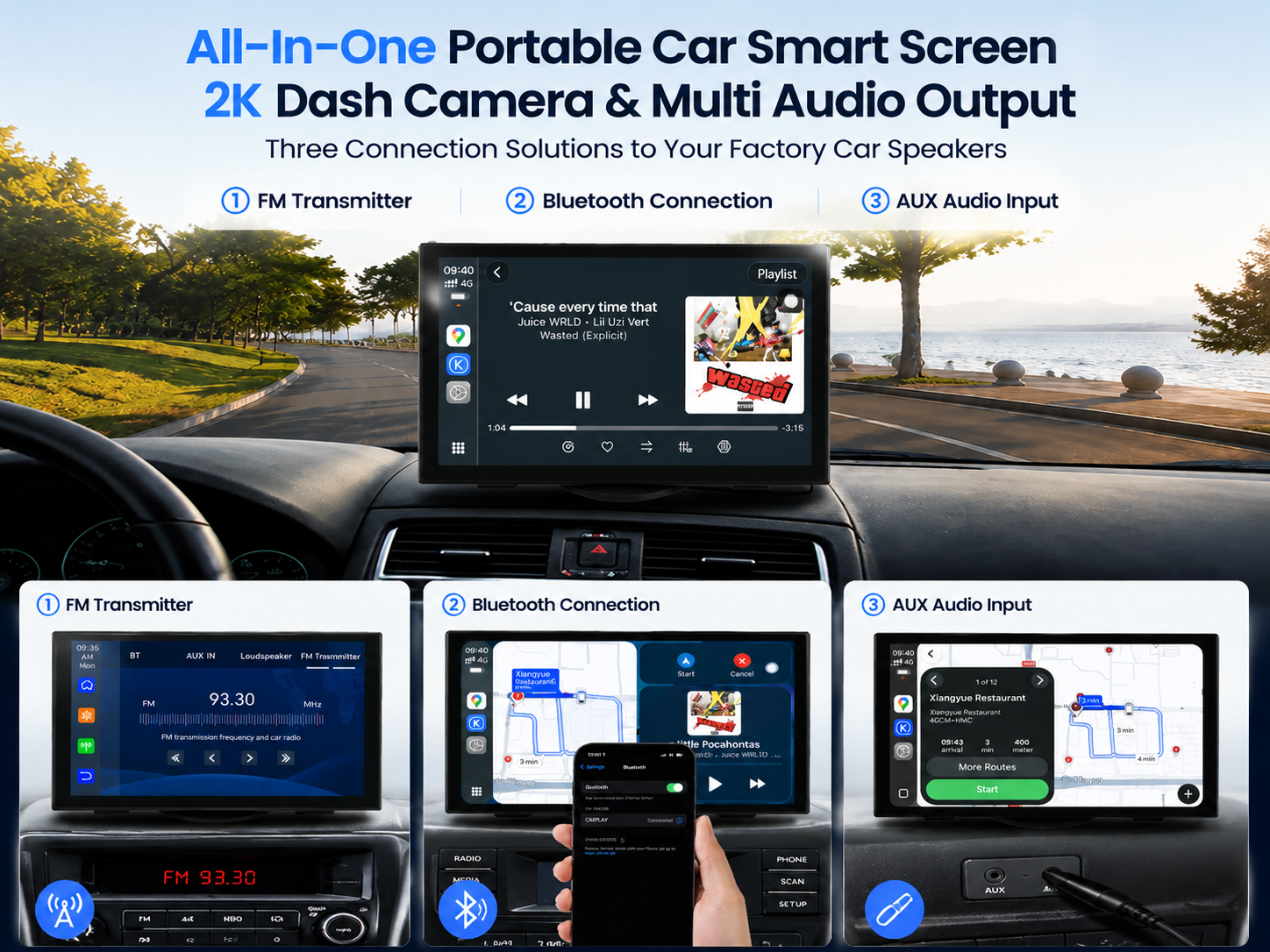
FM Transmitter
Wireless RearCamera HD

Bestselling products

Easy Setup

3 quick steps only, effortless installation for all vehicles.

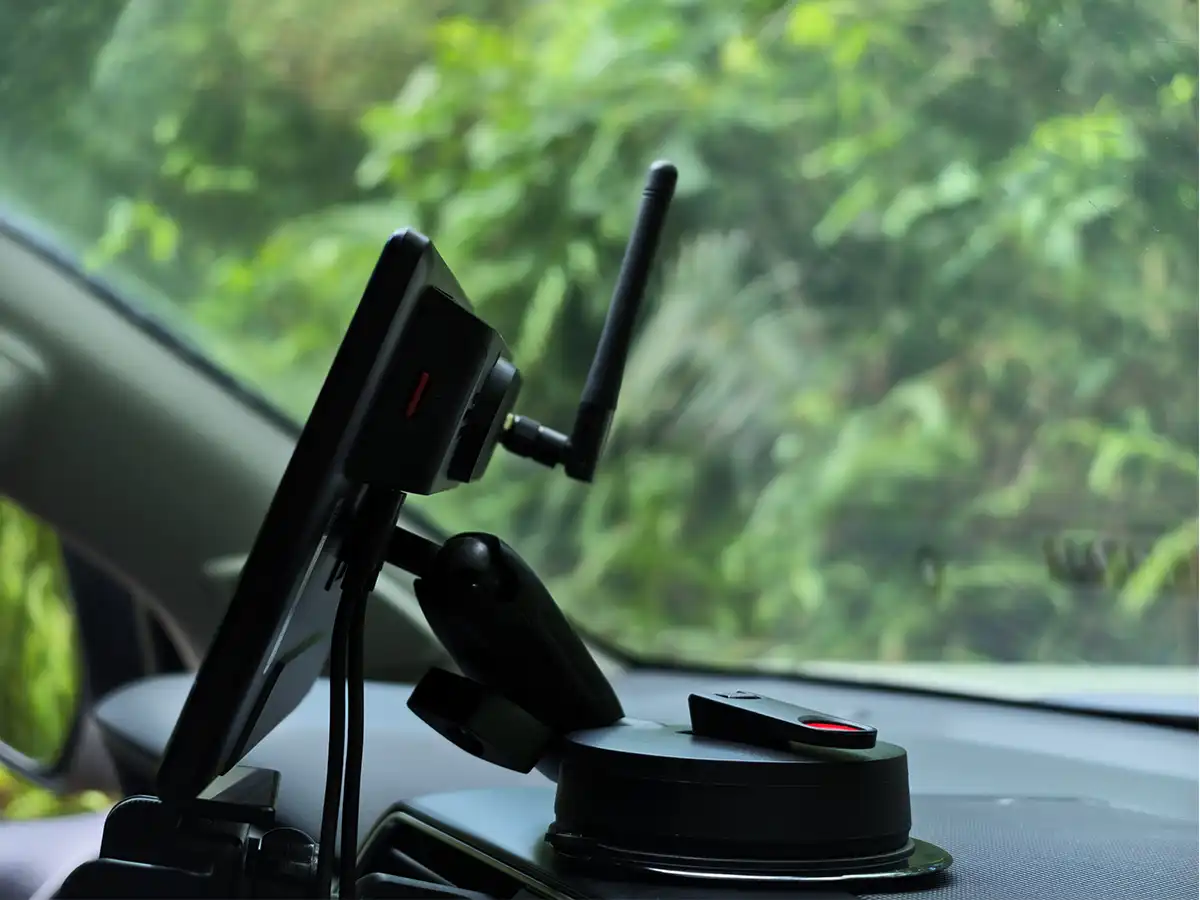
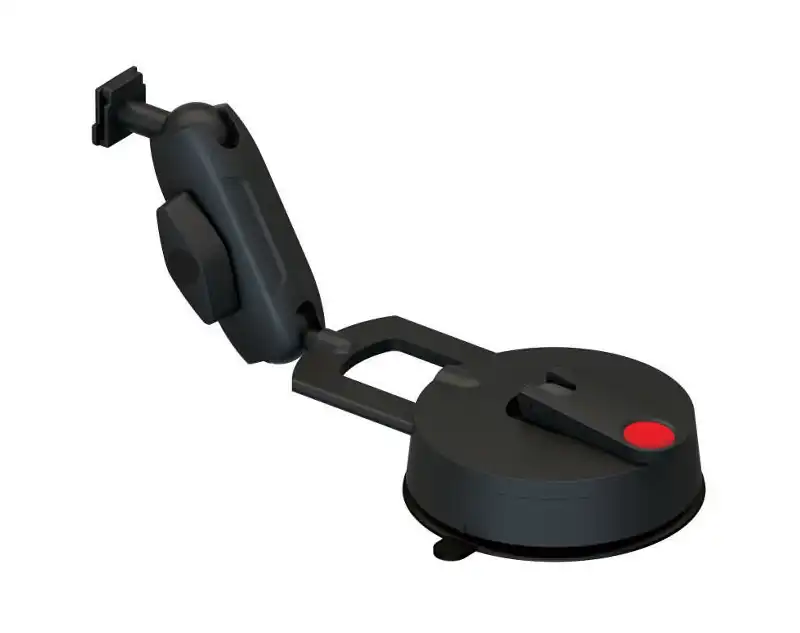
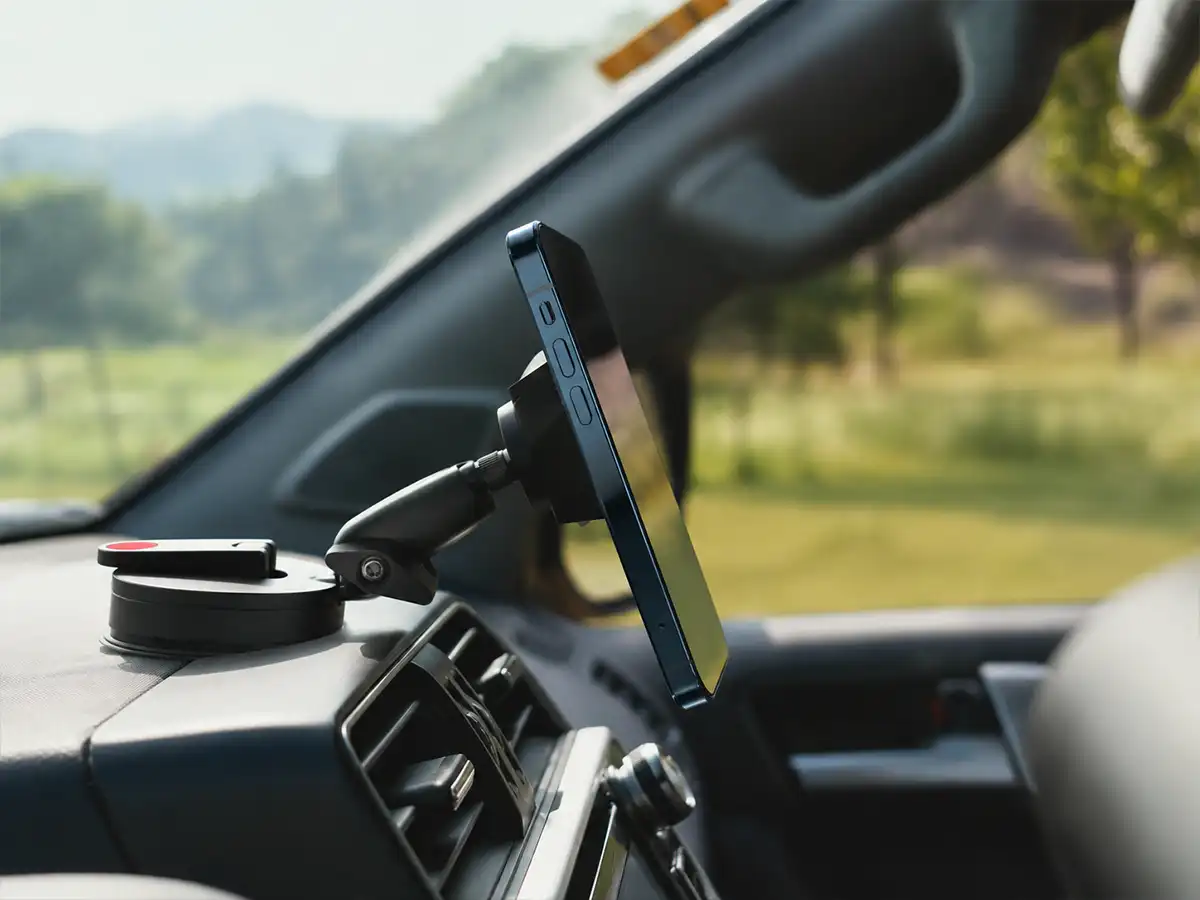
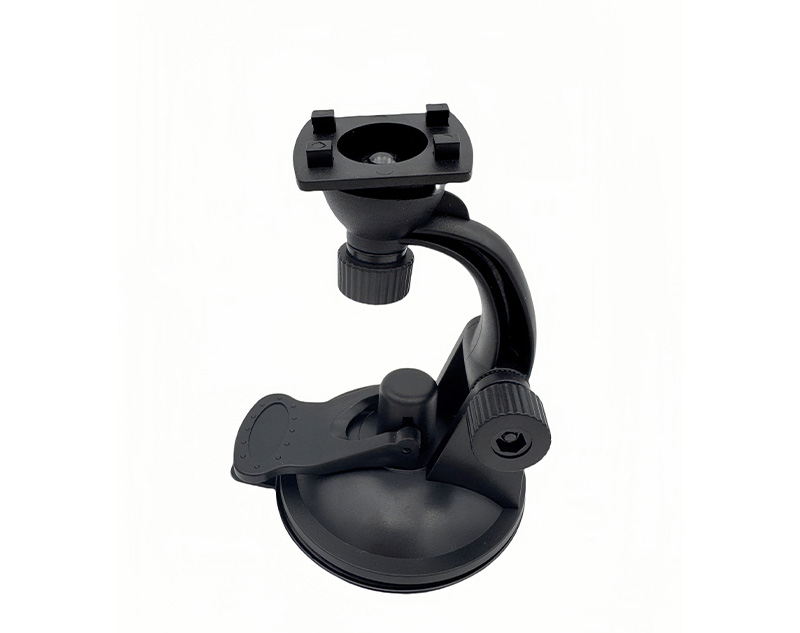
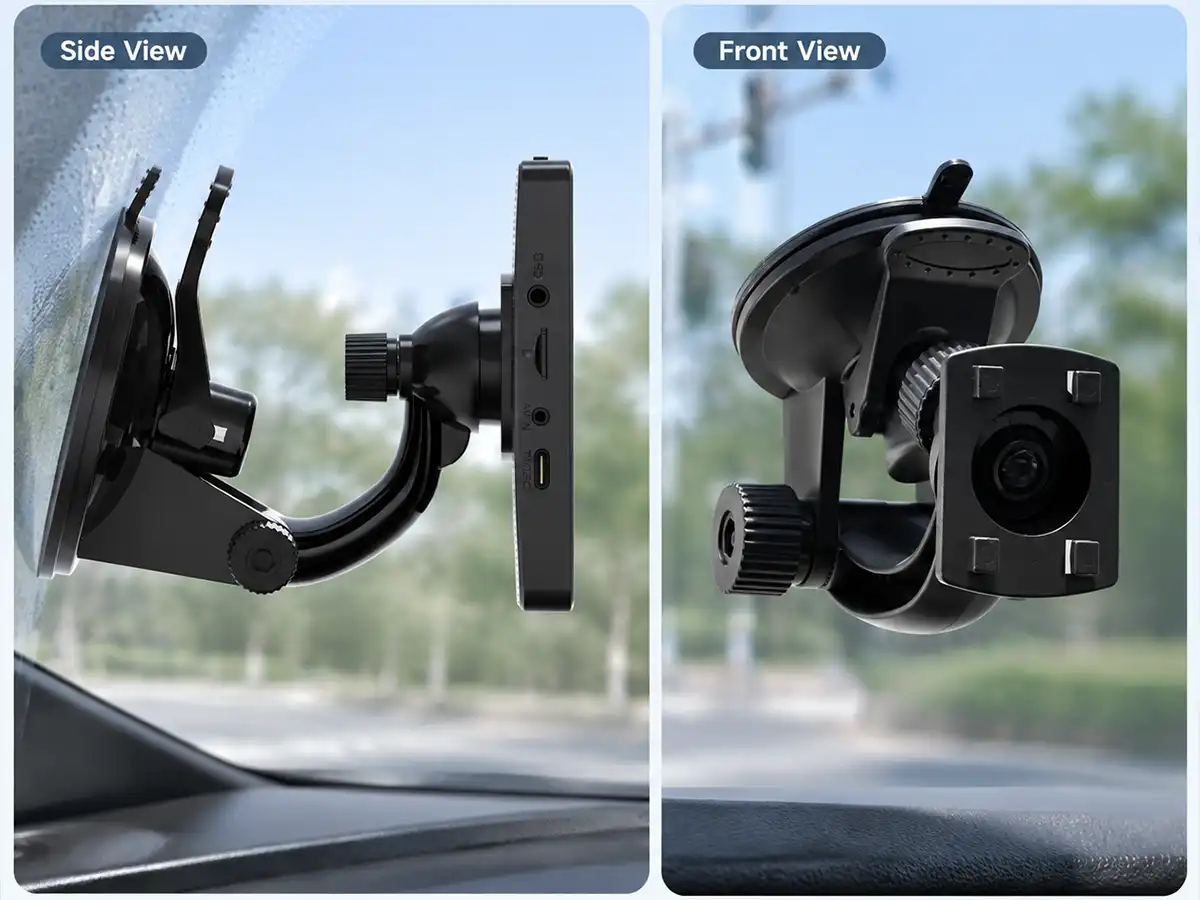
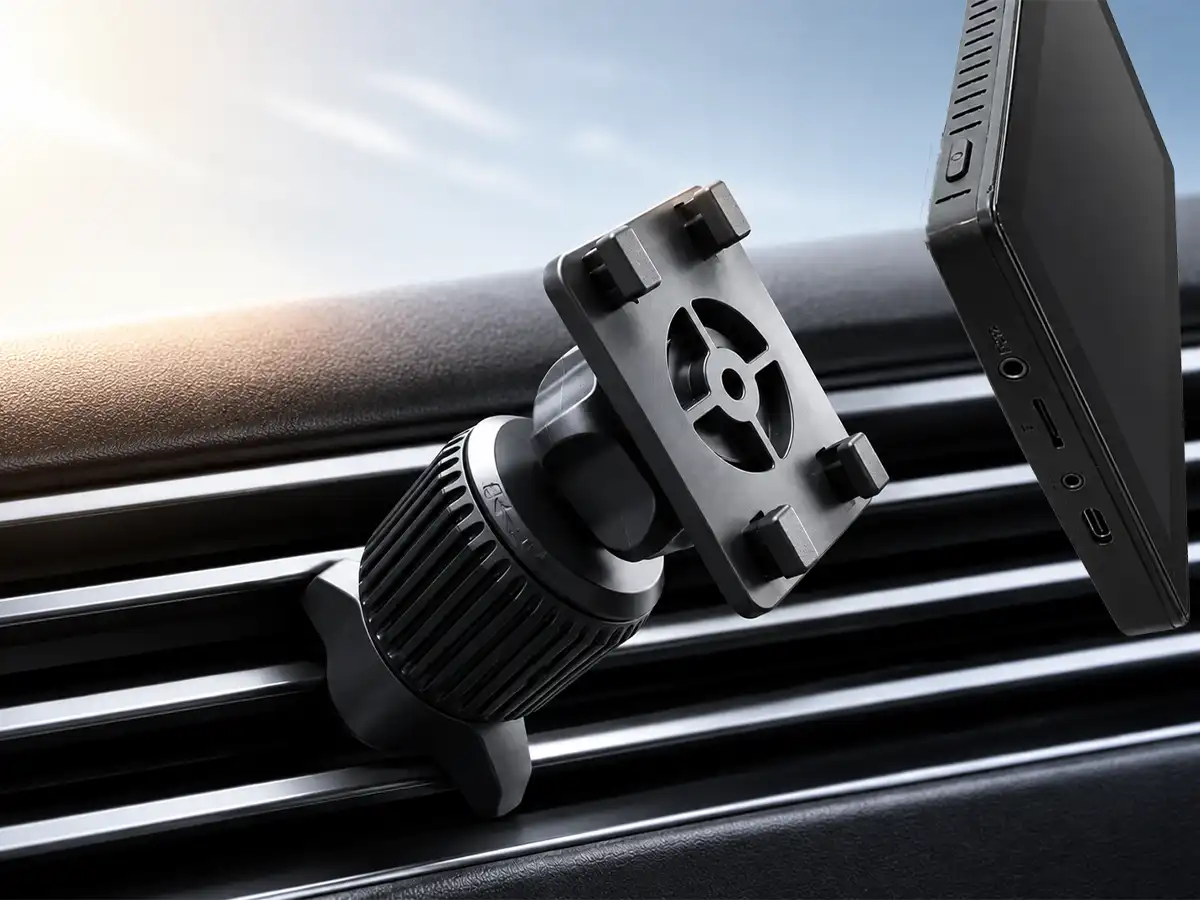
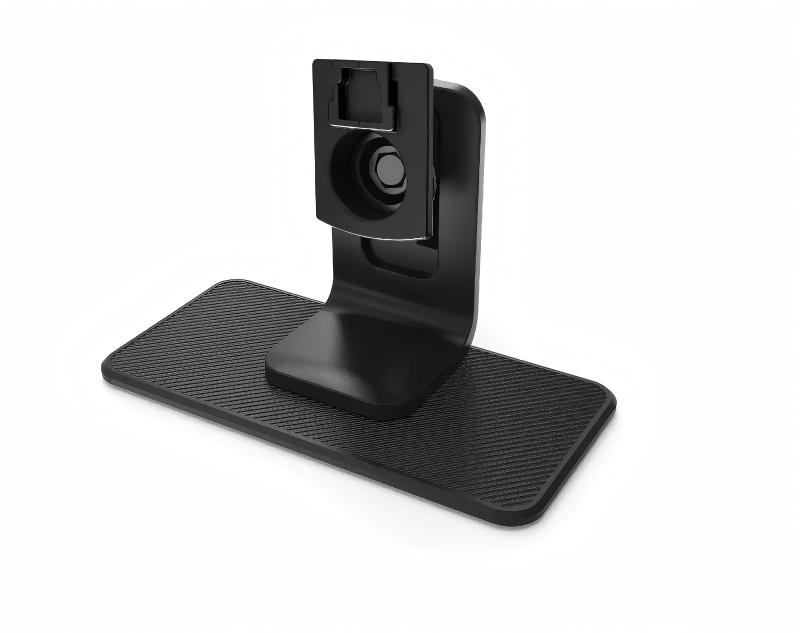
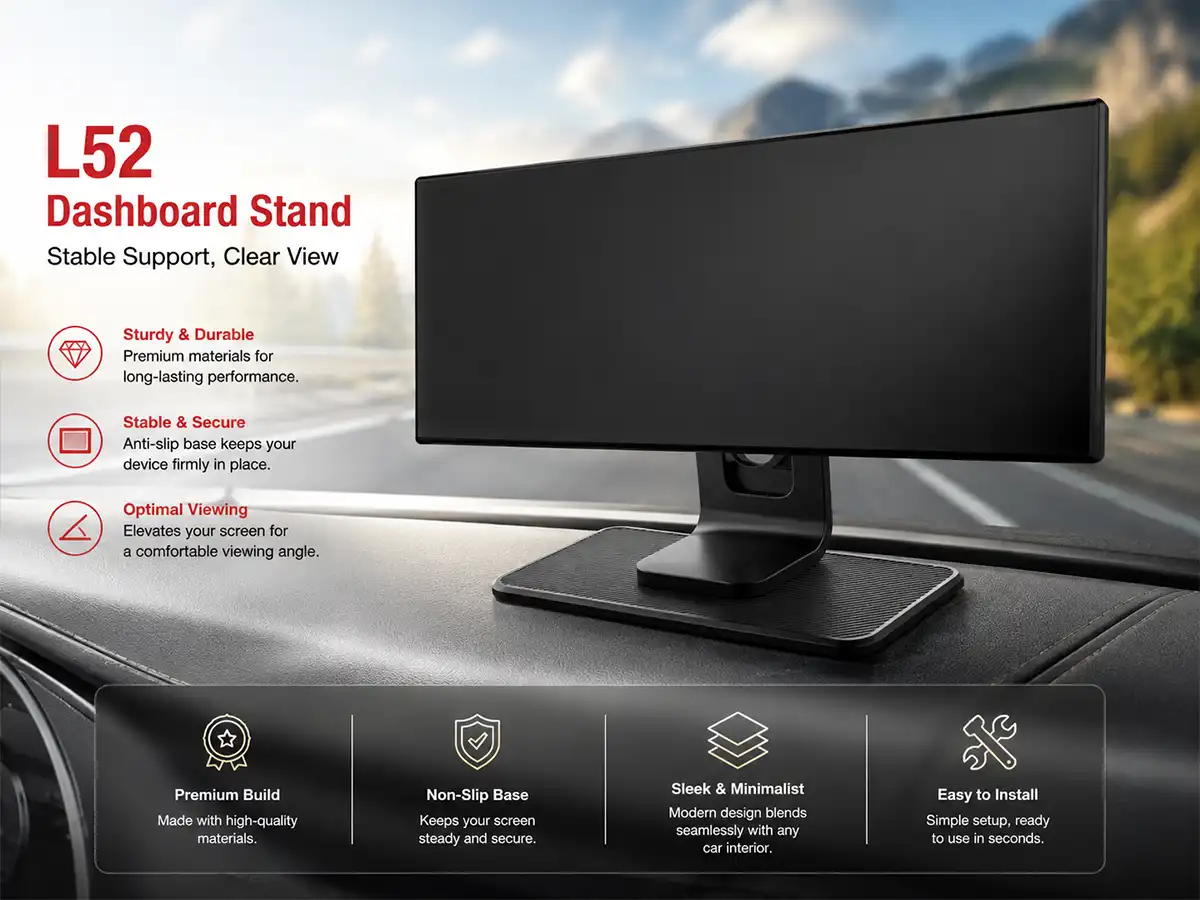
Install it on dashboard or windshield
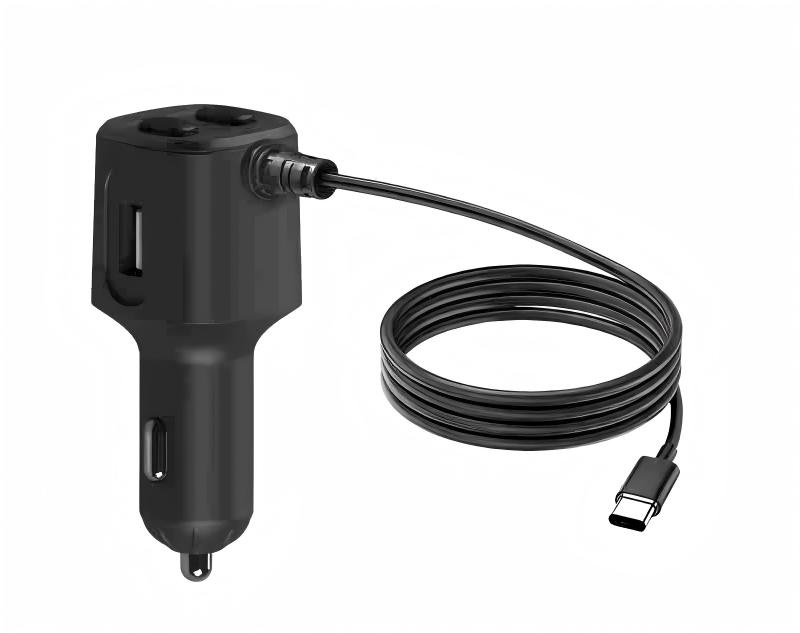
Connect the power
Switch to CarPlay or Android Auto

MCVISION Accessories

FOR OVER 10 YEARS, WE HAVE STRIVED TO DELIVER PREMJUMPORTABLE CAR NAVIGATION DEVICES WORLDWIDE.

5 MILLION+

Satisfied MCVISION Customers

10+ YEARS OF EXPERIENCE

2015-2025

THOUSANDS OF 5 STAR REVIEWS

Our Customers Love MCVISION

SUPPORT LIGHT SENSOR,
WIRELESS REAR CAMERA

Rugged navigation device dedicated to in-cab portable
entertainment,built for off-road exploring, camping, and
overlanding activities.

Upgrade your
vehicle withwireless CarPlay

FAQ's

Reboot both your smartphone and the car screen, toggle Bluetooth & Wi-Fi on your phone again, remove old pairing records, then re-establish the wireless connection.

Confirm your phone supports Android Auto, clear the app cache, re-enable phone permissions, and redo the pairing process within the device’s system.

Check if your SIM has remaining data allowance, adjust the APN access point settings, switch between 4G/3G network modes, then restart the device.

Double-check the camera power supply and wiring connections, select the correct camera input channel on the host, and test the camera on another device to rule out hardware faults.

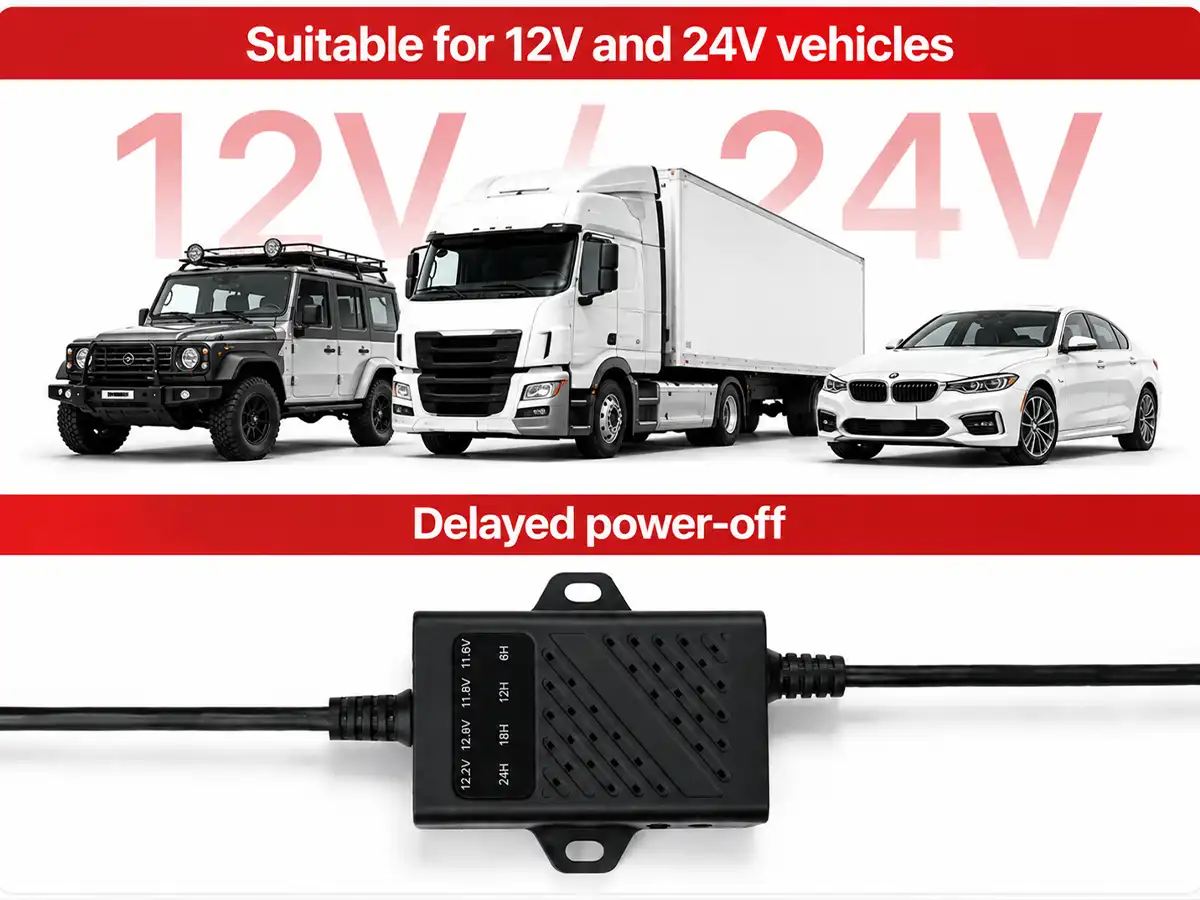
Verify the vehicle power is within the 12-24V supported range, check power cable tightness, format the DVR memory card, or press the reset key to restart the device.

Reinsert the SIM with the chip facing the correct direction, check for card damage/expiry, clean the SIM slot contacts, then restart the whole unit.

Confirm the car outlet outputs standard 12-24V voltage, inspect loose power cords, try a different power port in the vehicle.

Connect to stable Wi-Fi first, follow the official on-screen upgrade prompts, do not cut power during the updating process to avoid system damage.

Support 24/7

You can contact us anytime.


Fast Free Shipping

Free shipping on all US dashcom


30 Days Return

Simple return within 30 days


Secure Payment

Your payment is 100% secure